
LOcal SEO / Google Business Profile
How to Film a Google Business Profile Verification Video That Passes the First Time
[ Visual placeholder ]
Side-by-side: an AI answer that skips you today vs. one that names your business after the review.
TL;DR
Google won't let you upload a pre-recorded clip. You record live, inside Google's own system, through your phone — one continuous, unedited take of at least 30 seconds.
A passing video proves three things: where you are (location), that you can get in (access), and that the business is really yours (documents, financials, and signage).
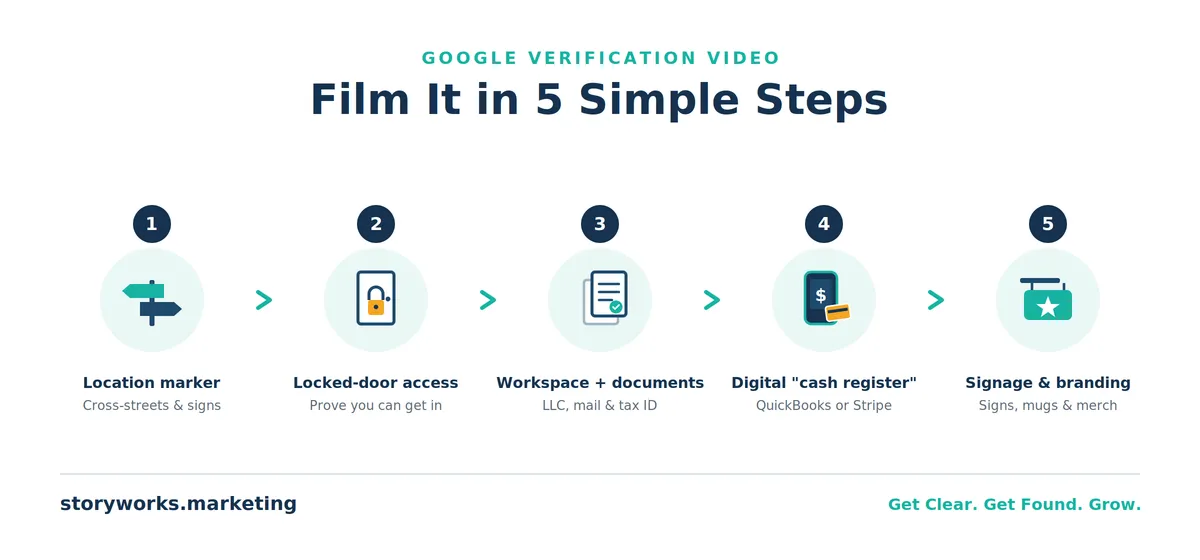
Film in this order: recognizable location marker → locked-door access → workspace and documents → your digital "cash register" → signage and branded proof.
Keep it short and planned. Overlong videos are the most common technical rejection, and rambling footage gets flagged for missing the essentials.
You don't need to narrate — reviewers often watch with the sound off. Show, don't tell.
Table of Contents
Why the video is where everyone gets stuck
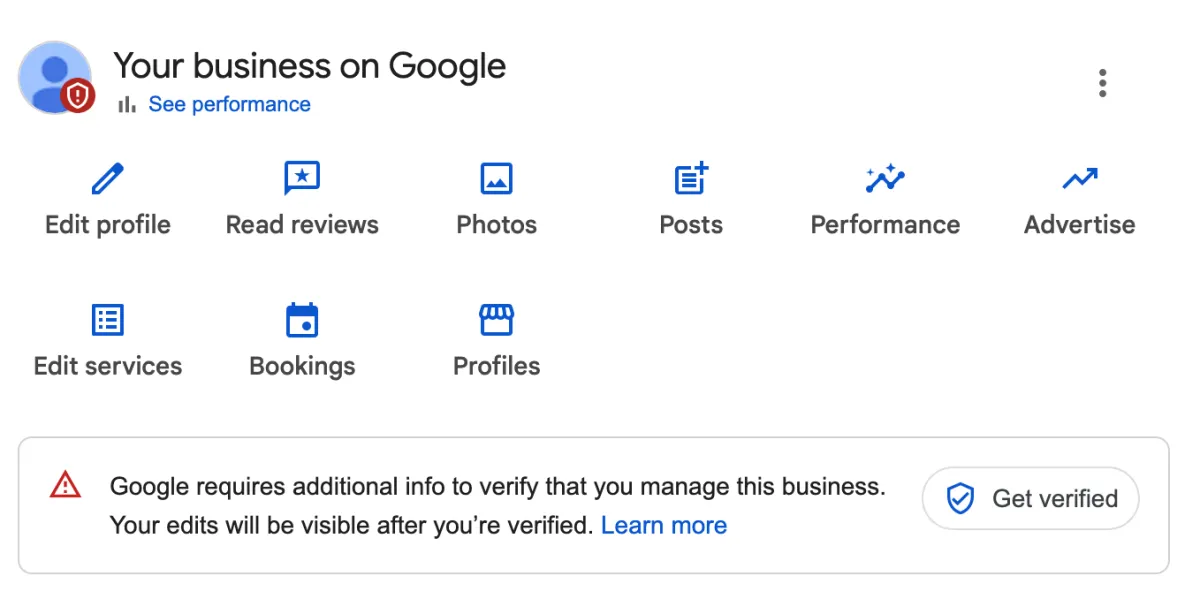
You've filled out your Google Business Profile, everything looks right, and then Google throws up a wall: record a video to verify your business. Suddenly you're standing in your office holding your phone, unsure what to point it at, how long it should be, or what Google actually wants to see.
Here's the reassuring truth. The video isn't a test you can fail forever. It's a checklist in disguise. Google is asking a few simple questions — Are you where you say you are? Can you actually get into this space? Is this really your business? — and when your video answers those questions clearly, you pass.
The problem is that Google never spells out that checklist in plain language. So most owners wing it, get a vague rejection, and have no idea what went wrong. After filming and coaching these videos for dozens of businesses, we've turned Google's murky requirements into a simple, repeatable sequence. Follow it, and you'll walk in prepared instead of guessing.
The one idea to carry with you: your video's only job is to prove you're a real business, run by a real person, at a real location. Everything below is just how you show it.
The three things every passing video must prove
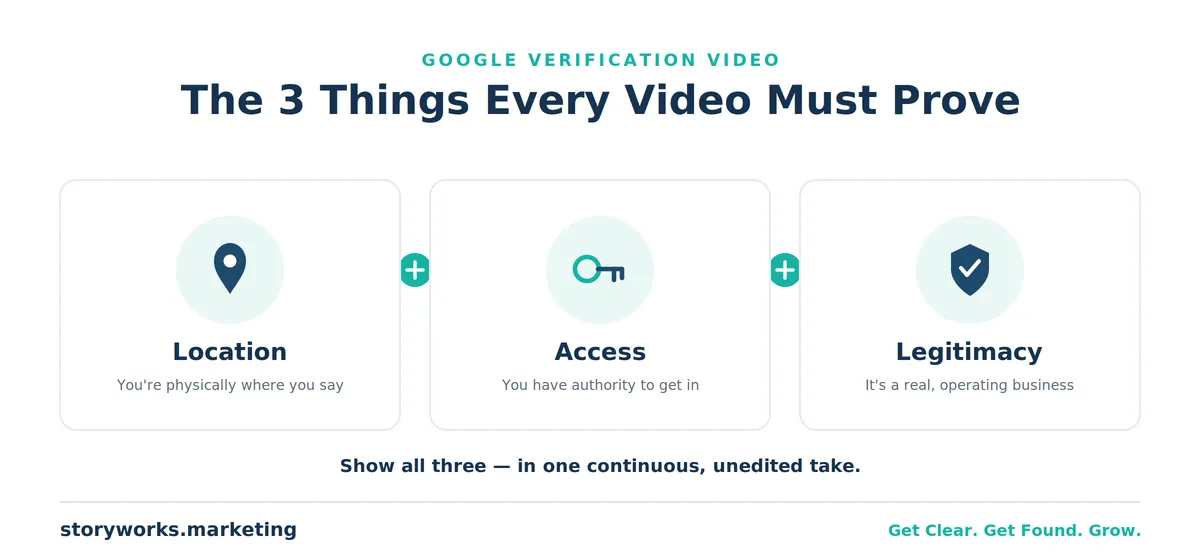
Strip away the confusion and Google is really evaluating three things:
1. Location. Your business is physically where your profile says it is. Google already has a Street View image of your address — your video just needs to match it.
2. Access. You have the authority to be there. Anyone can stand in front of a building; not everyone can unlock the door and walk in.
3. Legitimacy. This is a real, operating business — one with documents, a way to handle money, and branding, not a name someone typed into a form.
Every step in the walkthrough below exists to check one of those three boxes. Keep them in mind and the whole process stops feeling random.
Before you hit record: the rules that trip people up
A few technical rules matter more than owners realize, and getting one wrong can sink an otherwise perfect video:
You can't record and upload. Google has its own proprietary recording system. You'll grant it access to your phone's camera and record inside that system — and the moment you finish, it goes straight to Google. There's no editing, no re-cutting, no uploading a polished clip you made earlier.
One continuous, unedited take. No cuts, no stitching together clips.
At least 30 seconds — but don't run long. Google sets a maximum length, and going over it is one of the most common technical rejections. More on that below.
No faces. Not yours, not your team's, not a customer's.
No sensitive financial information left visible on screen — account numbers, balances, and the like.
No narration required. Reviewers frequently watch with the sound off, so don't rely on talking to explain things. Let the visuals do the work.
Here's a pro move: rehearse with your own phone's regular camera first. Practice the full walk-through, time it, and smooth out the flow. Then, when you're confident, do it for real inside Google's system. You only submit once per attempt, so a dry run pays off.
The 5-step filming walkthrough
This is the exact sequence we coach every client through. Move with purpose and hit each beat.
Step 1: Establish that the location is real
Start outside. Capture a recognizable marker — cross streets, a street sign, or a nearby landmark. Because Google already has a Street View image of your building, your goal is to visually connect what you're filming to what Google has on file. Point to the corner, show the street signs, then move toward your entrance. If your address number is posted out front, show it.
This first step is the one Google most often finds "insufficient," so don't rush it. Empty land, an unmarked door, or a parking lot with no context won't cut it. Give the reviewer something unmistakable.
Step 2: Prove you can get in
This is the step most people skip — and it's a frequent reason for rejection. The door needs to be locked. Walking through an already-open door proves nothing. So before you film, lock it.
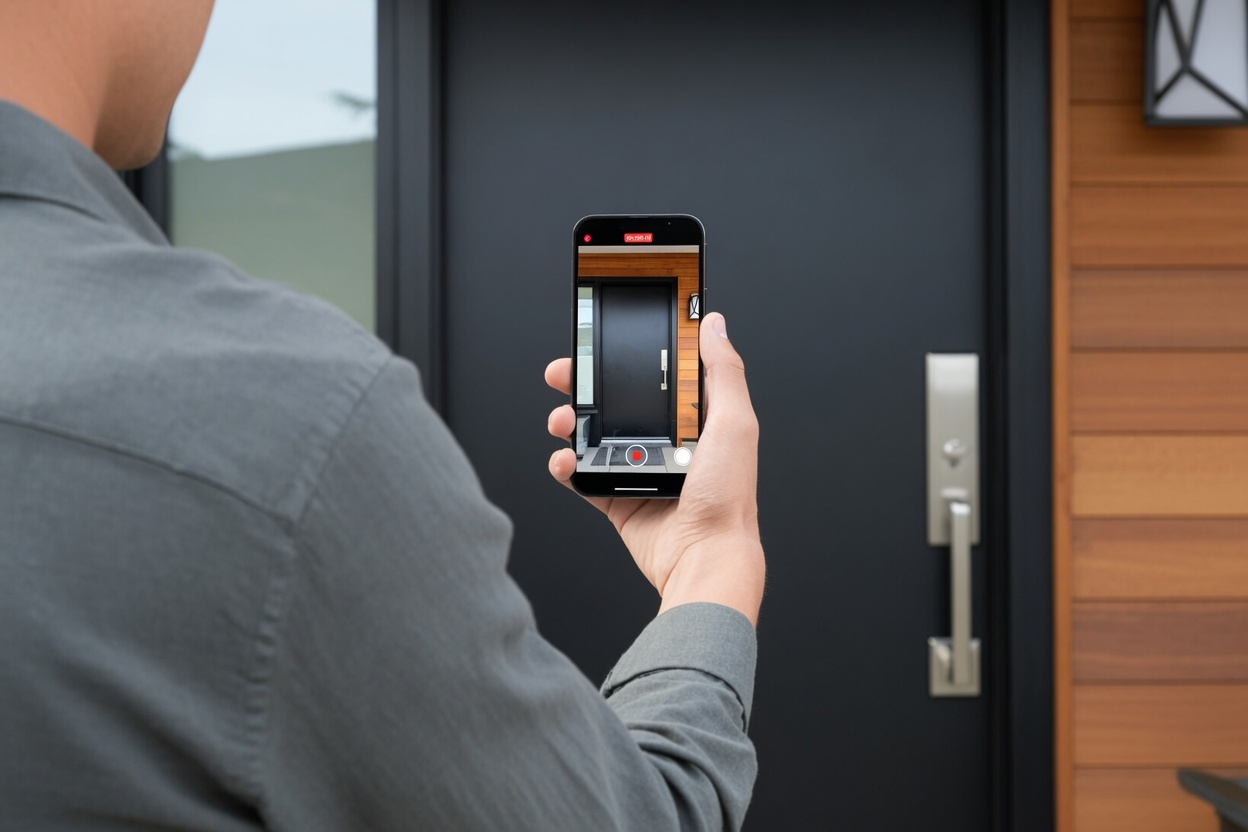
On camera, jiggle the handle to show it's locked, then use your key or key code to unlock it and walk in. That single moment — locked door, your access, entry — does more to prove ownership than almost anything else. If you have a sign or even a window sticker marking your office, capture it here.
Step 3: Show your workspace and documents
Walk to your actual work area. You can pass through shared spaces (a common kitchen, a staff area) but head to where you actually do business. Then show documentation you've laid out in advance that ties your business to this address:
— Your LLC filing showing your business name and tax ID number
— A bank statement mailed to your office address
— Any official mail or document with your company name and address
— A company-vehicle statement, if you have one, sent to your business. The magic ingredient is the address. Google is connecting the physical place you're standing to paperwork that proves the business operates from there.
Step 4: Show your digital "cash register"
Google wants to see how you handle money — historically, your cash register. But if you run a home office or a service business, you don't have a literal register. No problem: show your financial software instead.
Log in to QuickBooks or Stripe on camera, then go straight to the account settings. Reveal that the account is set up under your business — your company name, address, and tax ID. That demonstrates real transactions and real operations, and it satisfies the "cash register" requirement cleanly. (Just be careful not to leave actual account balances or numbers on screen.)
Step 5: Show signage and branded proof
Finally, show that this is a branded, legitimate operation. Capture any signage in or on your office. If you don't have a sign, it's genuinely worth having a small one made just for this purpose — it helps mark the space as your place of business. Then show any branded merchandise you have on hand: a coffee mug, a koozie, apparel, business cards — anything carrying your logo reinforces that you're the real thing.
And then stop. You've proven location, access, and legitimacy. That's the whole job.
A real example: the cross-street drive-up trick
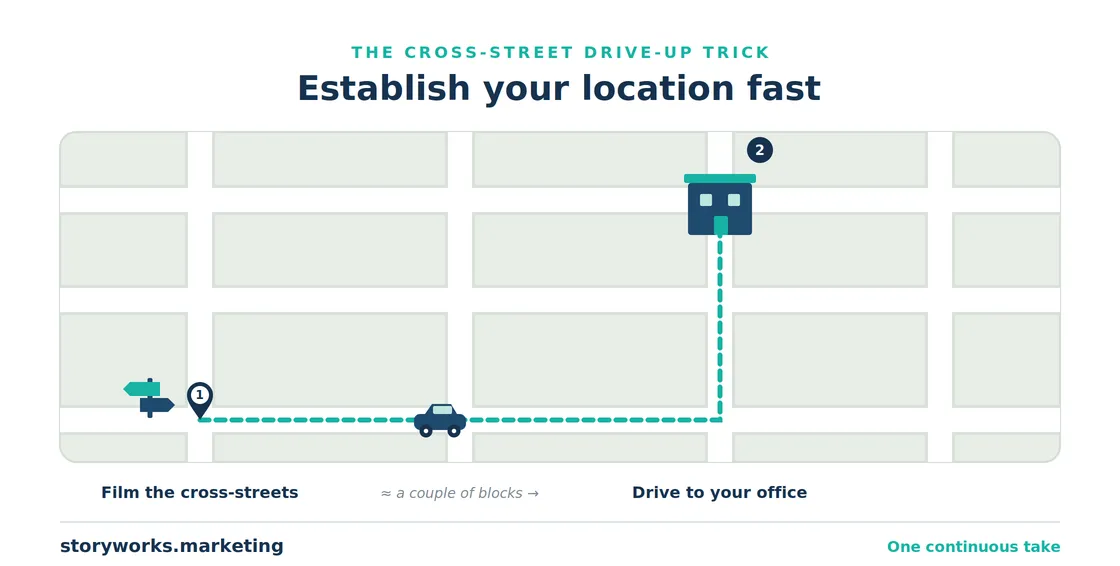
One of our clients had a challenge a lot of home-based owners share: her recognizable street markers weren't right at her front door, and she was worried about fitting everything into the time limit.
The solution was simple and clever. Her spouse drove while she filmed. She started by capturing the cross-street signs at the corner to establish the neighborhood, then — in the same continuous shot — he drove her straight to the office. In seconds she'd proven the real-world location and connected it to her workspace, without burning her whole time budget on step one.
That's the mindset that gets videos approved: you don't need a cinematic tour, you need an efficient one. Establish the location fast, get inside, prove it's yours, and wrap up.
For context on why this matters so much: businesses like Direct Custom Window Coverings in Portland needed a couple of attempts to get their video right after anchoring a new address — and once they nailed it, their local visibility took off. The video is a gate, not a wall. A little preparation gets you through it.
The pre-filming checklist
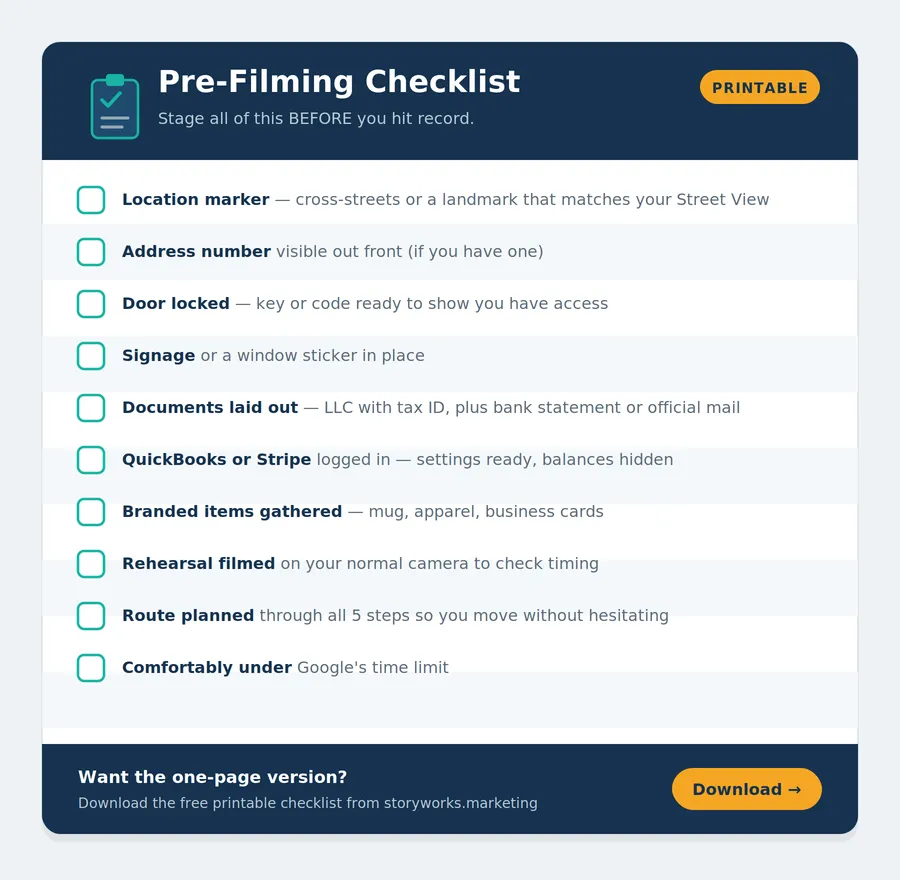
Print this, or keep it on a second screen, and get everything staged before you hit record:
Location marker identified — cross streets, street sign, or landmark that matches your Google Street View
Address number visible out front (if you have one)
Door locked and your key or code ready
Signage or window sticker in place
Documents laid out — LLC filing with tax ID, a bank statement or official mail showing your business name and address
QuickBooks or Stripe already logged in, settings page ready to show (balances hidden)
Branded items gathered — mug, apparel, business cards, anything with your logo
A rehearsal run filmed on your normal camera to check timing and flow
Plan your route through all five steps so you move without hesitating
Under the time limit — trim anything that isn't proving location, access, or legitimacy
The mistakes that get videos rejected
Nearly every rejected video we've seen traces back to missing one of five things. Avoid these and your odds jump dramatically:
1. No recognizable location marker. Filming a blank door or empty lot with no street context.
2. The door wasn't locked. Walking into an open space doesn't prove you have access.
3. No verifiable documents. No mail, no LLC paperwork — nothing tying the business to the address.
4. No "cash register." Skipping the QuickBooks/Stripe step that shows real operations.
5. No signage or branding. Nothing that marks the space as a legitimate place of business.
And two technical stumbles worth calling out separately: going over the time limit (we once filmed a thorough, beautiful video only to be told at the very end it was too long — and had to redo the whole thing), and a weak internet connection during upload. Plan short, connect strong.
What happens after you submit
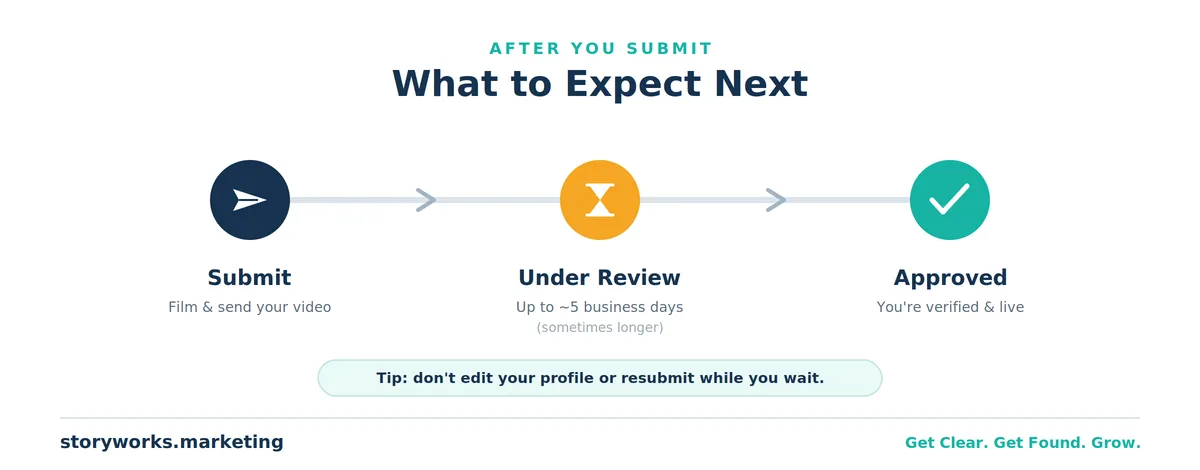
Once you submit, your profile will show that Google received the video and it's under review. Google says this takes up to five business days, and often it does. Sometimes it's faster; occasionally it drags on longer.
If it's approved — congratulations, you've cleared the gate. If it's rejected, don't take it personally. We've had clients (and ourselves) go through three or four videos before approval, simply because Google is being strict about keeping fake businesses off the map. Look at your video against the five essentials above, strengthen whichever was weakest, and record again.
And remember: passing verification makes you eligible to appear on Google — it doesn't guarantee you'll rank. Getting found is the next chapter, and it's the one that actually fills your calendar.
Want a second set of eyes before you record?
Schedule a free 30-minute discovery call.
We've coached dozens of businesses through verification — and we can help you get it right the first time, then build a profile that actually gets you found.
Frequently asked questions
Can I upload a pre-recorded verification video to Google?
No. Google requires you to record live inside its own system using your phone's camera. The moment you finish recording, it's submitted — there's no uploading an edited clip you made earlier. You can rehearse with your normal camera, but the real one has to be filmed in Google's tool.
How long should my Google verification video be?
At least 30 seconds, but stay comfortably under Google's maximum length. Going over the limit is one of the most common technical rejections. Plan your route through all five steps so you can cover everything efficiently.
Do I need to talk during the video?
No. Reviewers often watch with the sound off, so narration isn't required. Focus on clearly showing your location, your access, your documents, your financial software, and your signage.
What if my business doesn't have a physical sign or a cash register?
For signage, it's worth having a small sign made to mark your office. For the "cash register," show your financial software instead — log in to QuickBooks or Stripe and display that the account is set up under your business name and address.
Why does the door need to be locked in the video?
Because unlocking a locked door proves you have the authority to access the space. Walking through an already-open door doesn't demonstrate ownership or management, which is exactly what Google is trying to confirm.
My video keeps failing to upload. What should I check?
First, your internet connection — a weak signal is a common culprit. Second, your video length; if it's over Google's limit, you'll need to re-record something shorter. Trim anything that isn't directly proving location, access, or legitimacy.
How many times can I attempt the video?
As many as you need. Google will keep letting you try until you're approved. Each rejection comes with generic feedback, so review your footage against the five essentials and improve the weakest part before your next attempt.
Additional Resources:

Tim Yates is the founder of StoryWorks Website Design & Marketing and a certified StoryBrand Guide. He's been building websites since 2010 and, for the past eight years, has specialized in the local SEO and Google Business Profile work that turns "invisible" businesses into the ones customers actually find.
Since 2020, Tim has personally managed and optimized more than 34 Google Business Profiles — coaching business owners through video verification, reinstatements, and the full climb into Google's local 3-pack. His clients have gone from no profile at all to the #1 spot in their market in as little as three months, and the websites StoryWorks builds rank in the top 1% of the internet for organic traffic.
Grounded in the StoryBrand framework and connected to the Duct Tape Marketing network of certified marketers, Tim's mission is simple: help hardworking business owners get clear, get found, and grow. He believes if your customers can't find you, they can't hire you — and he'll point you toward the right help whether that's StoryWorks or not.


THE PROOF
From Skipped Over to Recommended.
The fastest way to feel this: ask AI a question your customers ask, and see
whether your name comes up.
BEFORE
[ Placeholder — drop in a real screenshot of an AI answer where the business is absent. ]
AFTER
[ Placeholder — the same query, now naming the client's business as the recommended answer. ]
WHAT CLIENTS SAY
"[ Placeholder — add a real client quote about being found in AI search or the clarity of the roadmap. ]"
[ Client Name ] - [ Title, Company ]